My Skills on Unity 3D
I have started using Unity in 2016, and I use it for a large part of my scholarship at Rubika. I Love to discover new features on the soft, and if I need a feature which does not exist, I code it myself!
I used Unity for a lot of various projects, tests and prototypes. I am used to 2D and 3D games and I did work for different platforms PC, AR, and Android.
I also have the occasion of experiencing miscellaneous themes and mechanics: tactical-RPG, tower-defense, puzzles-games, platformers, FPS, photography games, action games etc…
In 2019 I passed the Unity Certified Associate test.
Unity is a fun engine I love using and learning. It gave me the love of the programming and tool design.
Tool Design in Unity
The tool design in Unity is my favourite side of the software. I did a lot of researches and experimentations about it. I like to make big pipeline tools with everything linked as well as little tool that make me more comfortable.
I use the UnityEditor library to conceive new windows, Property Drawer, and Inspector that fits to the project I’m working on. I like to set up easy ways to edit list or to modify a behaviour for example.
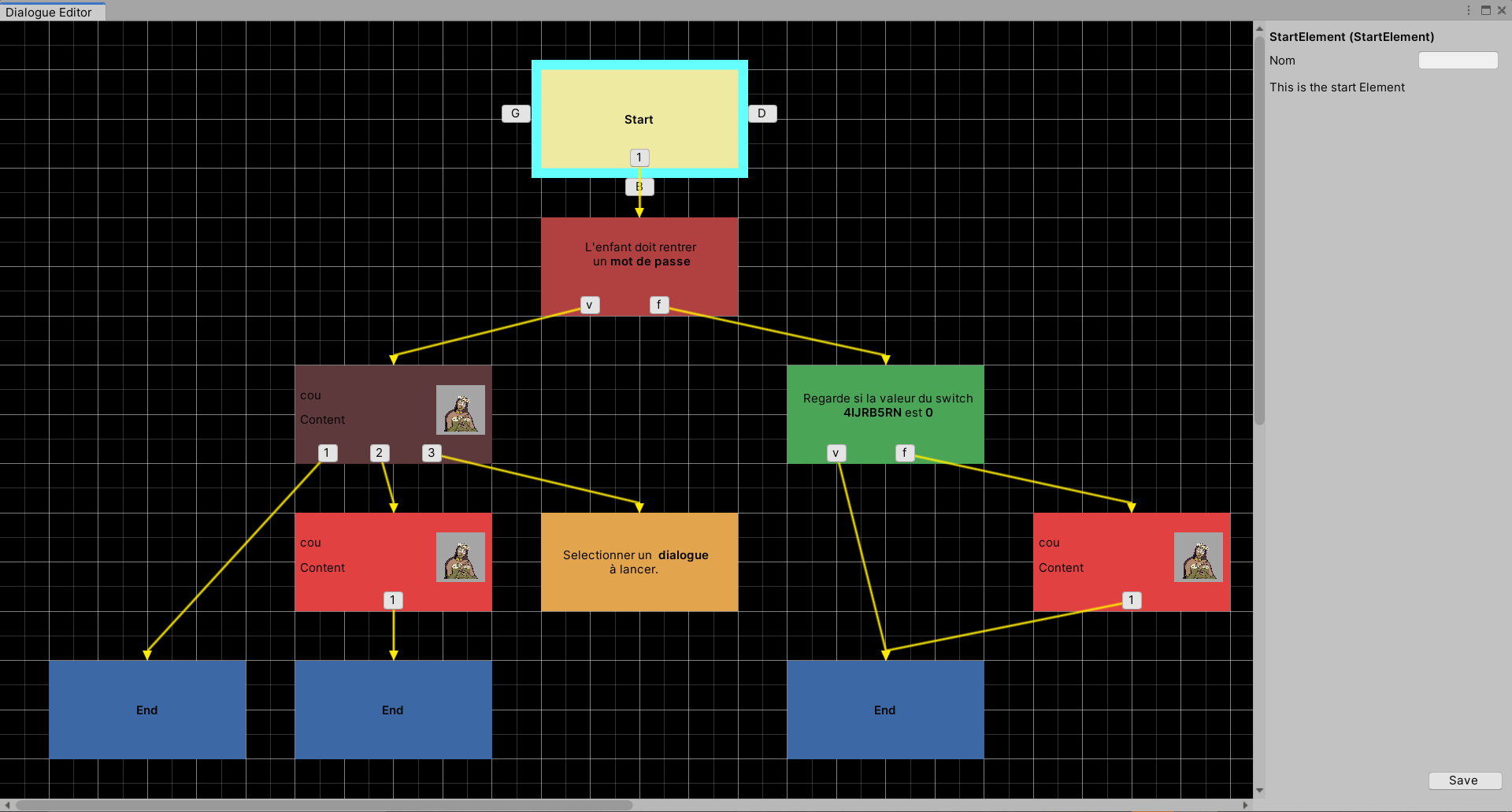
Example of a Unity Plug-In I design: A dialogue Editor

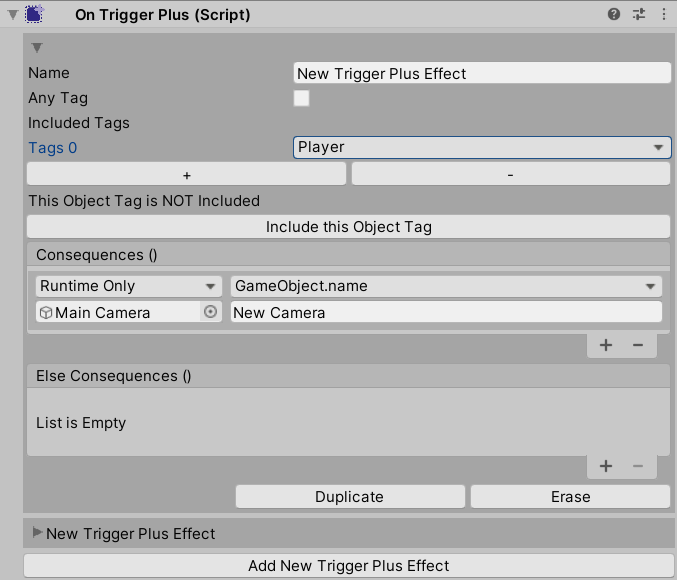
Example of a Unity Inspector Extention: A Behaviour that launch event when the object tigger a collision
I have the ability to conceive new Settings and Player preferences to smooth the tweaking of global value.
I too like to create tools to ease and improve the workflow of the project. With buttons to easily construct new GameObject or ScriptableObject for example.
I code a lot of static extension functions and attribute to simplify the workflow of the coding team or to design new type of editor.
Example of attribute I created to simplify the creation of nodes in my Dialogue Editor
[AttributeUsage(AttributeTargets.Class, AllowMultiple = false, Inherited = true)]
public class NodeAttribute : Attribute
{
    private readonly Type targetType;
    public Type TargetType
    {
        get { return targetType; }
    }
    public Color nodeColor;

    /// <summary>
    /// Constructor
    /// </summary>
    /// <param name="type">Targeted Dialogue Element Type</param>
    /// <param name="color">Color of the node in editor</param>
    public NodeAttribute(Type type, string colorName = "Red")
    {
        if (!type.IsSubclassOf(typeof(DialogueElement)))
        {
            Debug.LogError("Please Use a subclass of DialogueElement on Node Attribute");
        }
        else
        {
            this.targetType = type;
            var _nodeCol = GetSettingsForEditor.GetColor(colorName, out bool _isValid);

            nodeColor = _isValid ? _nodeCol : Color.magenta;
        }
    }

    /// <summary>
    /// Return the correct NodeEditor for the DialogueElement Target
    /// </summary>
    /// <param name="target"></param>
    /// <returns></returns>
    public static NodeEditor GetEditor(DialogueElement target)
    {
        //Get all Subclass of NodeEditor

        var _subclasses = TypeCache.GetTypesWithAttribute<NodeAttribute>();

        foreach (var t in _subclasses)
        {
            //Check if each attribute is a NodeAttribute
            object[] _attributes = t.GetCustomAttributes(true);
            foreach (Attribute att in _attributes)
            {

                if(att is NodeAttribute)
                {

                    //for each NodeAttribute do the code below if the NodeAttribute as the type of the target as selected type
                    if(((NodeAttribute)att).TargetType == target.GetType())
                    {
                        //Construct the class with a fake constructor
                        //(I'm not the only one to use it so I dont want my coleague to have to override the constructor for each new NodeEditor subclass)

                        var _n = Activator.CreateInstance(t) as NodeEditor;
                        _n.FakeConstructor("Default", target, ((NodeAttribute)att).nodeColor);

                        //Return value
                        return _n;
                    }
                }
            }
        }

        //Return null if there is any problem in the code above
        return null;
    }
}
And its application
[NodeAttribute(typeof(StartElement),"Yellow")]
public class StartElementEditor : NodeEditor
{
    private Rect labelRect;

    /// <summary>
    /// Number of exits of the node in the dialogue editor
    /// </summary>
    internal override string[] ExitNames => new string[] { "1" };

    /// <summary>
    /// Editor Script Called on the inspector on the Dialogue Window
    /// </summary>
    public override void OnInspectorGUI()
    {
        base.OnInspectorGUI();
        EditorGUILayout.LabelField("This is the start Element");
    }

    /// <summary>
    /// Editor Script Called on the node on the Dialogue Window
    /// </summary>
    public override void OnNodeGUI(Vector2 position)
    {
        labelRect = new Rect(position, NodeSizeRef);
        EditorGUI.LabelField(labelRect, "Start", MyStyles.MyLabelCentred);
    }

    /// <summary>
    /// Launched when the user Down the mouse's Left Click on the node
    /// </summary>
    public override void OnLeftClickDown()
    {
        base.OnLeftClickDown();
    }

    /// <summary>
    /// Launched when the user Up the mouse's Left Click on the node
    /// </summary>
    public override void OnLeftClickUp()
    {
        base.OnLeftClickUp();
    }

    /// <summary>
    /// Launched when the user Down the mouse's Right Click on the node
    /// </summary>
    public override void OnRightClickDown()
    {
        base.OnRightClickDown();
    }

    /// <summary>
    /// Launched when the user Up the mouse's Left Click on the node
    /// </summary>
    public override void OnRightClickUp()
    {
        base.OnRightClickUp();
    }
}
Example of a static function I coded to simplyfi the utilsation of serialized property in Unity
    /// <summary>
    /// Return a serialized property and display it as a layout
    /// </summary>
    /// <param name="serializedObject"></param>
    /// <param name="name">name of the targeted property</param>
    /// <param label="label">the label displayed on the Editor</param>
    /// <returns>The targeted property</returns>
    public static SerializedProperty AtributeAndDisplayeSerializedProperty(this SerializedObject serializedObject, in string name, string label)
    {
        //Attribute
        var _property = serializedObject.FindProperty(name);
        //Display
        EditorGUILayout.PropertyField(_property, new GUIContent(label));

        return _property;
    }
And its application
	public override void OnInspectorGUI()
	{
        var _myStringProperty = serializedObject.AtributeAndDisplayeSerializedProperty("myString", "my cool string");
        EditorGUILayout.LabelField(_myStringProperty.stringValue);

        //Instead of

        // var _myStringPropertyOld = serializedObject.FindProperty("myString");
        // EditorGUILayout.PropertyField(_myStringPropertyOld, new GUIContent("my old string"));
        // EditorGUILayout.LabelField(_myStringPropertyOld.stringValue);

	}

UI Programming
I very familiar with the way the UI system of unity and all tools provided by it work. I also extend it, to add events when the player hovers a button, or by creating a new behaviour from the event system, for example. I can make a responsive UI adapted for all size of the screen.
I did a lot of menus and HUD and I know how to add theses at the gameplay part.
Example of a menu I did for a prototype in 2018

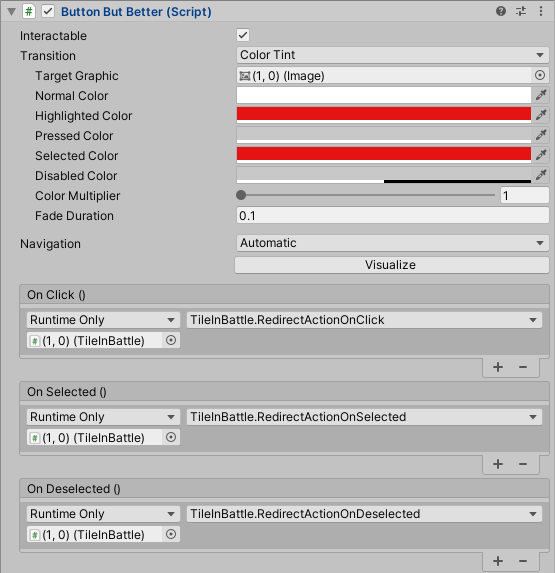
Example of an Extention of the Unity UI System I code to launch event when the button is overlapped
Animator
I use the animator for multiples purposes.
I can create and set up an animator for a project. I’m used to transitions, sub-state machines and blend tree. Furthermore, I can integrate animations to a project with C# and making tools to ease it.
I am used to State Machine Behaviour’s workflow and I can program scripts to add behaviour to animation or to use the animator as a State Machine.
I Learn, with my internship at La Belle Games (on Detox and Frankenstein), how to uses theses skills on a professional project.
On Detox I used the Animator to create a State machine to always know in which position is the character The Detox State Machine

Shader 2D
I learn how to use the HLSL Shading language with Unity, but I mainly used it on 2D texture. I used it for in-game UI and indications. I have the ability to match it with a C# script to have a dynamic shader with effect easily tweakable.
In this prototype I made the eggs indications and the life and stamina on HLSL